Subscribe For Free Updates!

We'll not spam mate! We promise.

Showing posts with label iPhone 6. Show all posts

September 27, 2014

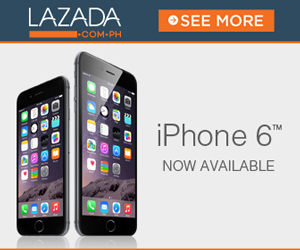
iPhone 6 and iPhone 6 Plus Now Available in Lazada With 43% Off

| - 0 comments

Lazada Philippines
Apple iPhone 6 128 GB

Specifications:

- iOS 8
- Dual-core 1.4 GHz Cyclone (ARM v8-based)
- PowerVR GX6650 (hexa-core graphics)
- 4.7 inches LED-backlit IPS LCD, capacitive touchscreen
- Shatter proof glass, oleophobic coating
- 128 GB, 1 GB RAM
- 8 MP phase detection autofocus, dual-LED (dual tone) flash primary camera
- 1.2 MP, face detection secondary camera
- Wi-Fi 802.11 a/b/g/n/ac, dual-band, Wi-Fi hotspot
- Bluetooth v4.0, A2DP, LE
- Nano-SIM
- Non-removable Li-Po 1810 mAh battery (6.9 Wh)

Now: ₱ 48,499.00
Before:  ₱ 85,000.00 you save 43%
24 month installment ₱ 3,063.68


Apple iPhone 6 Plus 16GB

Specifications:

- iOS 8
- Dual-core 1.4 GHz Cyclone (ARM v8-based)
- GPU PowerVR GX6650 (hexa-core graphics)
- 5.5" 1080 x 1920 pixels LED-backlit IPS LCD, capacitive touchscreen, 16M colors
- 16 ROM 2 GB RAM
- 8 MP, 3264 x 2448 pixels, phase detection autofocus, dual-LED (dual tone)flash Secondary 1.2 MP, - 720p@30fps, face detection, FaceTime over Wi-Fi or Cellular
- Wi-Fi 802.11 a/b/g/n/ac, dual-band, Wi-Fi hotspot
- Bluetooth v4.0, A2DP, LE
- Nano-SIM
- Non-removable Li-Ion battery
- Stand-by (2G) / Up to 384 h (3G)
- Talk time (2G) / Up to 24 h (3G)
- Music play Up to 80 h

Now: ₱ 54,499.00
Before: ₱ 91,790.00 you save 41%
24 month installments ₱ 3,442.70


Apple iPhone 6 64GB

Specifications:

- iOS 8
- Dual-core 1.4 GHz Cyclone (ARM v8-based)
- PowerVR GX6650 (hexa-core graphics)
- 4.7 inches LED-backlit IPS LCD, capacitive touchscreen
- Shatter proof glass, oleophobic coating
- 64 GB, 1 GB RAM
- 8 MP phase detection autofocus, dual-LED (dual tone) flash primary camera
- 1.2 MP, face detection secondary camera
- Wi-Fi 802.11 a/b/g/n/ac, dual-band, Wi-Fi hotspot
- Bluetooth v4.0, A2DP, LE
- Nano-SIM
- Non-removable Li-Po 1810 mAh battery (6.9 Wh)

Now: ₱ 46,499.00
Before: ₱ 81,000.00 you save 43%
24 month installments ₱ 2,937.34


Apple iPhone 6 128GB

Specifications:

- iOS 8
- Dual-core 1.4 GHz Cyclone (ARM v8-based)
- PowerVR GX6650 (hexa-core graphics)
- 4.7 inches LED-backlit IPS LCD, capacitive touchscreen
- Shatter proof glass, oleophobic coating
- 128 GB, 1 GB RAM
- 8 MP phase detection autofocus, dual-LED (dual tone) flash primary camera
- 1.2 MP, face detection secondary camera
- Wi-Fi 802.11 a/b/g/n/ac, dual-band, Wi-Fi hotspot
- Bluetooth v4.0, A2DP, LE
- Nano-SIM
- Non-removable Li-Po 1810 mAh battery (6.9 Wh)

Now: ₱ 48,499.00
Before: ₱ 85,000.00 you save 43%
24 month installments ₱ 3,063.68
[Continue reading...]

iPhone 6 and iPhone 6 Plus Tips and Tricks on iOS 8

| - 0 comments
Connect Your iPhone 6 and iPhone 6 Plus to Wi-Fi

If Wi-Fi icon appears at the top of the screen, you’re connected to a Wi-Fi network. iPhone reconnects anytime you return to the same location.

Configure Wi-Fi. Go to Settings > Wi-Fi.

Choose a network: Tap one of the listed networks and enter the password, if asked.

Ask to join networks: Turn on "Ask to Join Networks" to be prompted when a Wi-Fi network is available. Otherwise, you must manually join a network when a previously used network isn’t available.

Forget a network: Tap "i" icon next to a network you’ve joined before, then tap "Forget this Network."

Join a closed Wi-Fi network: Tap Other, then enter the name of the closed network. You must already know the network name, security type, and password (if required).

Adjust the settings for a Wi-Fi network: Tap "i" icon next to a network. You can set an HTTP proxy, define static network settings, turn on BootP, or renew the settings provided by a DHCP server.

Set up your own Wi-Fi network.

If you have an unconfigured AirPort base station turned on and within range, you can use iPhone to set it up. Go to Settings > Wi-Fi and look for "Set up an AirPort base station." Tap your base station and the Setup Assistant will do the rest.

Manage an AirPort network.

If iPhone is connected to an AirPort base station, go to Settings > Wi-Fi, tap "i" icon next to the network name, then tap "Manage this Network." If you haven’t yet downloaded AirPort Utility, tap OK to open the App Store, then download it.

Connect to the Internet

iPhone connects to the Internet whenever necessary, using a Wi-Fi connection (if available) or your carrier’s cellular network. For information about connecting to a Wi-Fi network, see Connect to Wi-Fi, above.

When an app needs to use the Internet, iPhone does the following, in order:

- Connects over the most recently used available Wi-Fi network
- Shows a list of Wi-Fi networks in range, and connects using the one you choose
- Connects over the cellular data network, if available.

Note: If a Wi-Fi connection to the Internet isn’t available, apps and services may transfer data over your carrier’s cellular network, which may result in additional fees. Contact your carrier for information about your cellular data plan rates.


iPhone 6 and iPhone 6 Plus iCloud Features

iCloud offers free mail, contacts, calendar, and other features that you can set up simply by signing into iCloud with your Apple ID, then making sure that the features you want to use are turned on.

Set up iCloud.

Go to Settings > iCloud. Create an Apple ID if needed, or use your existing one.

iCloud stores your photos and videos, documents, music, calendars, contacts, and more. Content stored in iCloud is pushed wirelessly to your other iOS devices and computers signed into iCloud with the same Apple ID.

iCloud is available on devices with iOS 5 or later, on Mac computers with OS X Lion v10.7.5 or later, and on PCs with the iCloud for Windows 4.0 (Windows 7 or Windows 8 is required).

Note: iCloud may not be available in all areas, and iCloud features may vary by area. For more information, see www.apple.com/icloud.

iCloud features include:

Music, Movies, TV Shows, Apps, and Books:

Automatically get iTunes purchases on all your devices set up with iCloud, or download previous iTunes music and TV show purchases for free, anytime. With an iTunes Match subscription, all your music, including music you’ve imported from CDs or purchased somewhere other than the iTunes Store, can also be stored in iCloud and played on demand. See iCloud and Match.

Photos:

Use iCloud Photo Sharing to share photos and videos with just the people you choose, and let them add photos, videos, and comments. See Photo Sharing.

Family Sharing:

Up to six family members can share their purchases from the iTunes Store, iBooks Store, and App Store. Pay for family purchases with the same credit card and approve kids’ spending right from a parent’s device. Plus, share photos, a family calendar, and more. See Family Sharing.

iCloud Drive:

Safely store your presentations, spreadsheets, PDFs, images, and other documents in iCloud, and access them from your iPhone, iPad, iPod touch, Mac, or PC. See iCloud Drive.

Documents in the Cloud:

For iCloud-enabled apps, keep documents and app data up to date across all your devices set up with iCloud.

Mail, Contacts, Calendars:

Keep your mail, contacts, calendars, notes, and reminders up to date across all your devices.

Safari Tabs:

See the tabs you have open on your other iOS devices and OS X computers.

Backup:

Back up iPhone to iCloud automatically when connected to power and Wi-Fi. All iCloud data and backups sent over the Internet are encrypted. See Backup Files and Settings.

Find My iPhone:

Locate your iPhone on a map, display a message, play a sound, lock the screen, or remotely wipe the data. Find My iPhone includes Activation Lock, which requires your Apple ID and password in order to turn off Find My iPhone or erase your device. Your Apple ID and password are also required before anyone can reactivate your iPhone. See Find My iPhone.

Find My Friends:

Share your location with people who are important to you. Download the free app from the App Store.

iCloud Keychain:

Keep your passwords and credit card information up to date across all your designated devices. See iCloud Keychain. See iCloud Keychain.

With iCloud, you get a free email account and 5 GB of storage for your mail, documents, photos, and backups. Your purchased music, apps, TV shows, and books, as well as your photo streams, don’t count against your available space.

Upgrade your iCloud storage.

Go to Settings > iCloud > Storage, then tap Change Storage Plan. For information about upgrading your iCloud storage, see help.apple.com/icloud.

How to Sync iPhone 6 With iTunes

Syncing with iTunes copies information from your computer to iPhone, and vice versa. You can sync by connecting iPhone to your computer, or you can set up iTunes to sync wirelessly with Wi-Fi. You can set iTunes to sync music, videos, apps, photos, and more. For help syncing iPhone, open iTunes on your computer, choose Help > iTunes Help, then select Sync your iPod, iPhone, or iPad.

Sync wirelessly. Connect iPhone. Then in iTunes on your computer, select your iPhone, click Summary, and select “Sync with this iPhone over Wi-Fi.”

If Wi-Fi syncing is turned on, iPhone syncs when it’s connected to a power source, both iPhone and your computer are on and connected to the same wireless network, and iTunes is open on your computer.

Tips for syncing with iTunes on your computer 

Connect iPhone to your computer, select it in iTunes, and set options in the different panes.

• In the Summary pane, you can set iTunes to automatically sync iPhone when it’s attached to your computer. To temporarily override this setting, hold down Command and Option (Mac) or Shift and Control (PC) until you see iPhone appear in the iTunes window.

• In the Summary pane, select “Encrypt iPhone backup” if you want to encrypt the information stored on your computer when iTunes makes a backup. Encrypted backups are indicated by a lock icon , and a password is required to restore the backup. If you don’t select this option, other passwords (such as those for mail accounts) aren’t included in the backup and you’ll have to reenter them if you use the backup to restore iPhone.

• In the Info pane, when you sync mail accounts, only the settings are transferred from your computer to iPhone. Changes you make to a mail account on iPhone don’t affect the account on your computer.

• In the Info pane, click Advanced to select options that let you replace the information on iPhone with the information from your computer during the next sync.

• In the Music pane, you can sync music using your playlists.

• In the Photos pane, you can sync photos and videos from a supported app or folder on
your computer.

• If you use iCloud to store your contacts, calendars, and bookmarks, don’t also sync them to
iPhone using iTunes.


[Continue reading...]

September 18, 2014

iPhone 6 Tips and Tricks

| - 0 comments
How to Factory Reset (Hard Reset) iPhone 6

Restoring the default settings or factory reset your iPhone 6 will delete all your saved files. It is recommended to backup your important files on your computer before attempting to reset your device.

We have our own reasons why we factory reset our device. Maybe we want to delete all the files and restore the device to its original state. It could also be the device may be malfunctioning or so slow and it needs to be reset.

The steps below are the instructions on how to factory reset your iPhone 6:

Step 1. On your iPhone, go to "Settings".

Step 2. Select "General" option.

Step 3. On the bottom of the screen, tap "Reset".

Step 4. You will be seeing a list of things which you can reset. If you want to reset all the content, select "Erase All Content and Settings".

Step 5. Tap "Yes" to confirm the action.


Now, you just need to wait while your iPhone 6 is wiping all datas or files on your device. In a short while your device will be good as new.

It is also recommended to Restart or reset your iPhone 6 first if something wrong before attempting to factory reset. This will also force your apps to quit.

Restart iPhone. Hold down the Sleep/Wake button until the red slider appears. Slide your finger across the slider to turn off iPhone. To turn iPhone back on, hold down the Sleep/Wake button until the Apple logo appears.

Force an app to quit. From the Home screen, double-click the Home button and swipe upwards on the app screen.

If you can’t turn off iPhone or if the problem continues, you may need to reset iPhone. Do this
only if you’re unable to restart your iPhone.

Reset iPhone. Hold down the Sleep/Wake button and the Home button at the same time for at least ten seconds, until the Apple logo appears.

You can reset the word dictionary, network settings, home screen layout, and location warnings. You can also erase all of your content and settings.


How to Import Contacts From Old Phone to New Phone (on Sony, iPhone, Samsung, HTC and Nokia)

Contacts is very important for everyone of us. We can't connect to our friends without a contact number. If you have a new phone, saving contacts on the phone one by one is so hassle. But now, there's an easy way how to transfer or import your contacts from your old phone to your new phone.

Use your PC to transfer contacts to your new phone. This process is applicable in several phone brands, including Sony, iPhone, Samsung, HTC and Nokia.

You just need an Internet Connection on your PC, your old and new phone and their own USB cable.

Then you need to install the PC Companion program. This is a free application and the installation files are already saved on your new phone. This program can also be used in updating your phone software.

Please note that if you are using the Microsoft Windows 7 operating system on your PC, make sure that the AutoPlay setting is enabled.

To check your settings:

Click Start > Control Panel, then type "autoplay" on the search box. Click the AutoPlay, and mark the check box Use AutoPlay for all media and devices.

Installing the PC Companion:

  • Turn on your new Phone and connect it to your PC.
  • On your new Phone, tap "Install" to install PC Companion on the PC.
  • On your computer, if a pop-up window that appears notifies you about available PC Software, select Run Startme.exe.
  • Then click Install to start the installation and then follow the instructions to complete the installation.

If you are not prompted with a pop-up window to install the PC Companion, you can also download the PC Companion here.

Transferring your contacts to your new phone:

  • Make sure that PC Companion is installed on your PC.
  • Open the PC Companion application on your PC.
  • Then click Contacts Setup and follow the instructions to transfer your contacts.


How to Import Movies on iPhone 6

Bored? Want to watch movies on your iPhone but don't know how to import it. Well, no worries. Here's a very simple steps on how to import movies from your PC to your iPhone.

Step 1. Use the USB cable and plug your iPhone into your computer. iTunes should automatically open.

Step 2. Click the "Movies" tab in the center of the iTunes browser window.

Step 3. Check the boxes next to the movies you want to sync, or you can select "Automatically include (all) movies." 

Step 4. Click the "All" box to bring up a drop-down menu, then select the option of your choice. 

Step 5. Select "Move" next to any rented movies.

Step 6. Click "Apply" in the bottom-right corner of the window.


How to Save Battery Life on your iPhone 6

If you just got your new iPhone 6, you’d never want to leave it sitting blankly for even an hour. You’d even want to use it till its battery gone dead. It’s common for Apple users to get fascinated and hooked with iDevices’ cool features. If you are that addicted, saving your battery life could perhaps give you another hour of gaming spree and even lengthen your devices’ life. Here are some few things though that you must know on how to save battery life on your iDevices.

1. Turn off vibrate feature when playing games. Avoid playing intensive video games as this will kill your battery quickly.

2. You might not know this, but by adjusting your devices’ volume to low or none at all, you are eventually saving a small amount of battery life. Go to Settings menu, select General and head on to Sounds to adjust your devices’ sound system.

3. Just like computers, keeping your iDevices’ screen at maximum brightness will consume more battery life. Adjust your screen settings to low by going to Settings and select Brightness and Wallpaper to change the default level of brightness.

4. Switch to Airplane mode when you don’t need to use the internet. Airplane mode basically turns off both Wi-Fi and the regular wireless radio. However this will also prevent calls from coming in. If you’re just playing a regular game and doesn’t want any disturbances (like a phone call perhaps), might as well switch to Airplane mode to save battery life.

5. 3G connection uses up more battery life compared to Wi-Fi. So if possible, use Wi-Fi especially on hotspot instead of 3G. According to Apple, iPhone on the other hand gets 10 hours for Wi-Fi and only 6 hours for 3G.

6. Disable Bluetooth radio when not needed. Go to Settings, then General and Bluetooth to switch off.

7. Turn off Push Notifications. Every time you get notifications from Facebook , Twitter or any apps your using, you’re also consuming your battery life. If you can check those apps manually, you can turn off the notifications by heading to SettingsNotifications and switch to off to save a bit of battery life.

8. Set your screens to lock quickly when not in use. Go to General; select Auto-Lock to set your screen to lock quickly before you put it back on your pocket or bag.

9. Keep your devices out of the sun or any hot surfaces. Heat kills batteries quickly.


How to Invert Screen Color on iPhone 6

iPhone 6 is dubbed to have a perfect fit on your hand compared to other smartphones in the market. The phone is slimmer, even lighter and has a higher-resolution compared to its predecessors. This 4-inch smartphone allows you to change its screen/menu colors for a customize phone and of course for easy viewing. Check out these easy and simple steps and try it yourself.

1. On your iPhone 6, press on Settings icon.

2. Then go to General.

3. On the list, scroll down to Accessibility.

4. And then switch to turn on the Invert Colors option. That’s how you change your screen color for easy viewing.


How to Turn On/Off WiFi on iPhone 6 | Forget a Network

With its sleek and stunning features, iPhone 6 is surely one of the best of its kind. Apple has finally connected iPhone to the fastest cellular data network called the LTE. Uploads, data download, internet browsing is faster than you think even when it’s not on WiFi connection. Nevertheless, here are few steps on how you can turn on/off your wifi settings on your mighty iPhone 6.

1. On your iPhone 6 device, press on the Settings icon.

2. Select on WiFi on the menu options.

3. Now there’s a switch button on top of your screen. If you click on that, it’ll turn on the Wifi Settings in blue color. Press the same button to turn off WiFi.

4. Take note that when you turn on your WiFi settings, it will search for available networks in the local area.

Choose a network: Tap one of the listed networks and enter the password, if asked.

• Ask to join networks: Turn on “Ask to Join Networks” to be prompted when a Wi-Fi network is available. Otherwise, you must manually join a network when a previously used network isn’t available.

• Forget a network: Tap 'i' icon next to a network you’ve joined before. Then tap “Forget this Network.”

• Join a closed Wi-Fi network: Tap Other, then enter the name of the closed network. You must already know the network name, security type, and password (if required).

• Adjust the settings for a Wi-Fi network: Tap 'i' icon next to a network. You can set an HTTP proxy, define static network settings, turn on BootP, or renew the settings provided by a DHCP server.

[Continue reading...]

September 12, 2014

iPhone 6 User Manual PDF for iOS 8 FREE Download

| - 0 comments
iPhone 6 Specifications

Category: Apple Smartphone
Officially Announced: September 2014 Official
Released: Expected on September 2014
Market Status: Soon
Price: US $199 16GB | US $299 16GB | US $399 16GB
Weight: 129g Screen
Display: 4.7" LED-backlit IPS LCD, capacitive touchscreen, 16M colors
Camera: 8MP
Connections: Bluetooth 4.0, Wi-Fi

[Continue reading...]

March 31, 2014

iPhone 6 Release on September With Two Versions

| - 0 comments

According to the recent reports, Apple will released two versions of iPhone 6 probably this coming September. As the company's track record, major product releases always happen around fall. The iPhone 5 series came out last September 2012. And the new version iPhone 5s and iPhone 5c came out around the same time last year. So many analysts believe that Apple will be releasing its new flagship on this timeline soon.
[Continue reading...]
 
Copyright © . ZaKyri NewsTrick - Posts · Comments
Theme Template by BTDesigner · Powered by Blogger